
Guides
Import Your Watch History From TV Time, Trakt, Letterboxd, and Simkl
ScreenAtlas can now import your watch history from TV Time, Trakt, Letterboxd, Simkl, or a CSV, and export your library back out as JSON. Format detection is automatic, re-runs are safe, and nothing gets faked.
When people consider moving to a new tracker, the questions are usually practical: how it looks, how it feels, what it remembers. But the thing that actually stops the move is almost never the interface. It is the archive. Years of watching, thousands of episodes checked off one at a time, and no reasonable way to carry any of it forward. “I’m not re-checking 4,000 episodes by hand” is not a complaint. It is a completely rational boundary, and it is the reason people stay on trackers they have quietly outgrown.
ScreenAtlas can now import your watch history from other trackers, and export your own library back out. Moving in should be boring. Moving out should be just as boring. Both directions matter, because your history is yours.
Bringing your history from where it already lives
You can import from TV Time (its GDPR export ZIP), Trakt (ZIP or JSON), Letterboxd (ZIP or CSV), and Simkl (ZIP, JSON, or CSV). TV Time itself shut down on July 15, 2026, so its export can no longer be requested, but a ZIP you downloaded before the shutdown still imports. If your old app is none of those, a generic episodes CSV works too, as does a ScreenAtlas native JSON export, which is handy if you are moving between accounts or restoring a copy you took earlier. Each app also has its own page with export steps and what comes across: the TV Time alternative, Trakt alternative, Simkl alternative, and Letterboxd alternative guides.
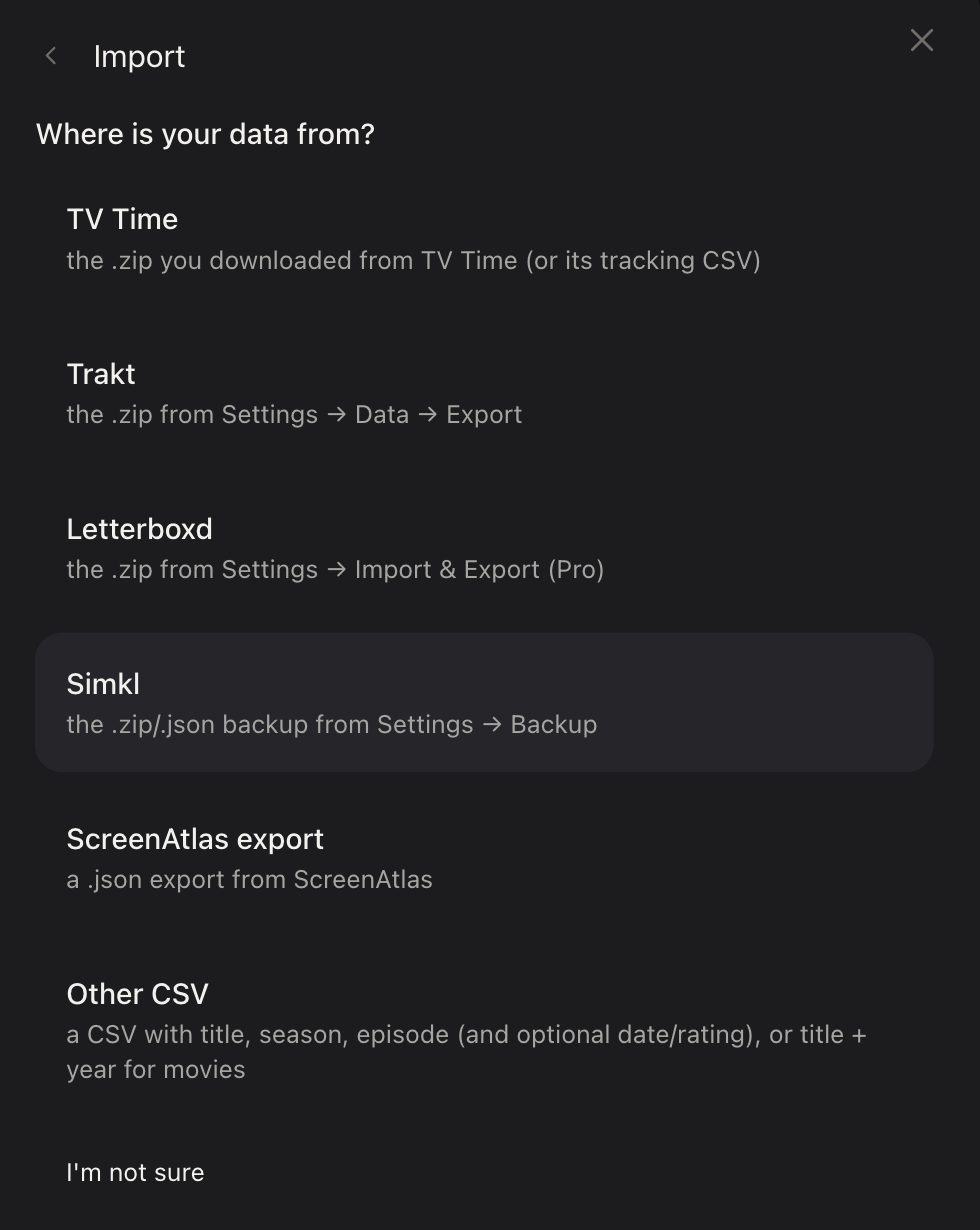
You do not need to know exactly which format you downloaded. Detection looks at
the file’s actual bytes, never its name or type, so a file called export.zip
that is really a CSV will not confuse it. There is also an “I’m not sure”
option: hand it any supported file and let it work out the rest. And if the
file does not match the source you picked, it detects the real format and
simply tells you, rather than failing with a cryptic error.
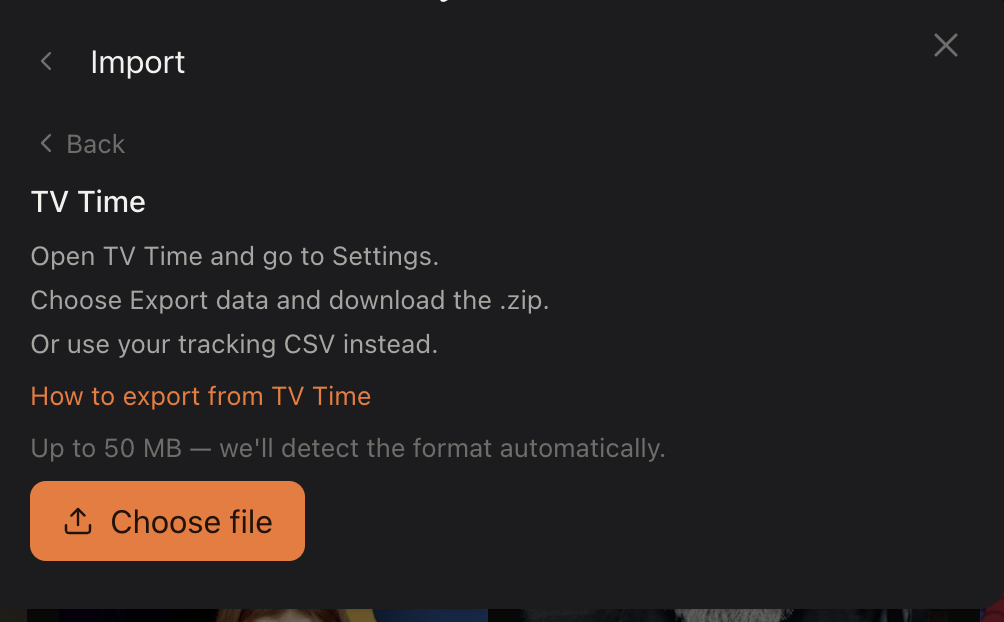
What comes across is the substance of your watching: shows, movies, episodes watched, ratings, your watchlist, and rewatches, including individual rewatch events. Lists arrive too when you import a native JSON export. Ratings are normalised to the ScreenAtlas 1 to 5 scale along the way: Trakt and Simkl’s 1 to 10 scores are halved and rounded up, Letterboxd half-stars are rounded up, and TV Time’s vote scales are mapped. What does not come across is anything that belongs to your old account rather than your watching: comments, reviews, likes, badges, stats, and personal or account details stay behind.
Files can be up to 50 MB, there is a daily import limit, and one import runs at a time.
It will not guess
A migration tool that quietly invents matches is worse than no tool at all, so ScreenAtlas does not guess. A title that cannot be confidently matched to the catalog is never forced into a near-miss. It goes into an unmatched report instead, with a reason, grouped by title, so one show with 200 unmatched episodes is a single line to look at rather than 200 rows of noise. You see exactly what moved and exactly what did not.
Re-running is safe in the same deliberate way. Every write is replay-safe and idempotent: importing the same file twice changes nothing. You get a message that the file was already imported and nothing new was added. There is no duplicate-everything surprise waiting behind a second click, which means you can take your time with it.
Taking it with you too
Import only feels safe if the exit is just as open, so export is a first-class direction, not an afterthought. You get a full JSON copy of your shows, movies, episodes, ratings, rewatches, and lists. The download link is emailed to you and works for 7 days. Keep it, restore from it later, or just know it is there.
How to start
Everything lives in the Import / export wizard: in the app under Profile, and on the web dashboard at screenatlas.app/web. You pick a direction, import or export, and walk through it step by step.
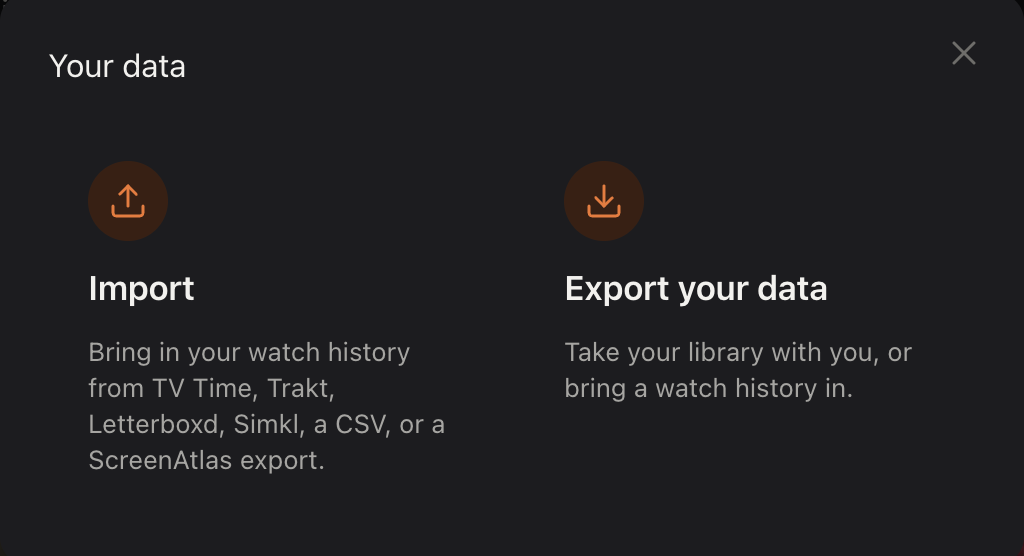
The practical next step is small. Export your history from your old tracker, whatever shape that file comes in, and drop it into ScreenAtlas. The boring part is now actually boring, and the episodes stay checked.
Keep reading
More from the journal

Best TV Time Alternatives in 2026: Trakt, Letterboxd, and ScreenAtlas
TV Time shut down in July 2026. An honest comparison of the trackers still standing — Trakt, Letterboxd, and ScreenAtlas — and which one fits how you actually watch.
How to Keep a Watchlist You Actually Watch
How to keep a watchlist you actually use: prune it, sort it by mood and length, and turn it into one concrete pick for tonight.

How to Track Every TV Show and Movie You Watch
A practical system for tracking every show and film you watch: why memory fails, what a good tracker needs, and the three-step setup that takes under a minute.

Every Major Streaming Service in 2026, Explained
A plain-English guide to the 2026 streaming landscape: what Netflix, HBO Max, Apple TV, Disney+, Prime Video, Hulu, Paramount+, and Peacock each do best, and how to build a stack that fits your watching.